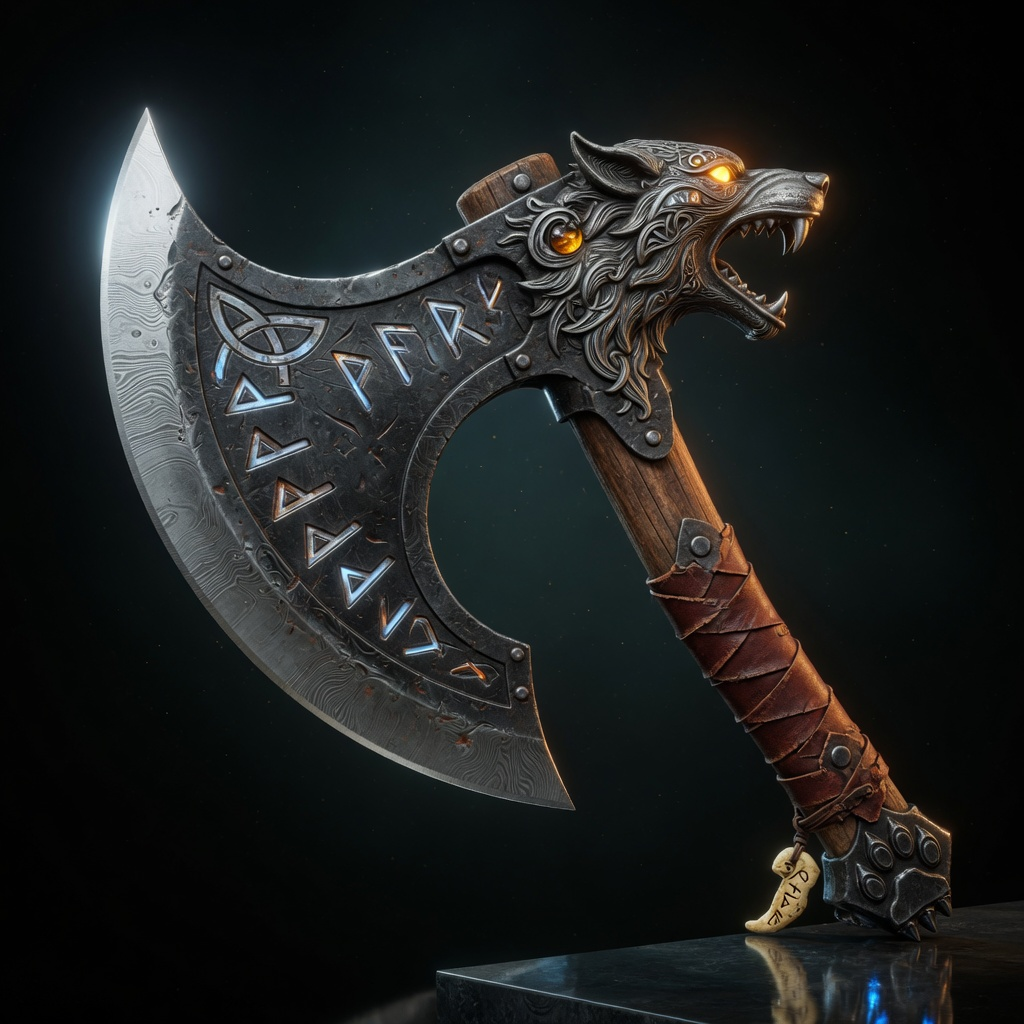
> ## Documentation Index
> Fetch the complete documentation index at: https://dripart-docs-nav-cta-ab-test-try-cloud-free.mintlify.site/llms.txt
> Use this file to discover all available pages before exploring further.
# TRELLIS.2 Image to Model ComfyUI Workflow Example
> Generate high-fidelity 3D models with full PBR textures from a single image using TRELLIS.2, Microsoft's open-source 4B-parameter image-to-3D model.
**TRELLIS.2** is an open-source image-to-3D model from Microsoft Research, and the successor to TRELLIS. It is a 4B-parameter model built on native 3D VAEs with 16× spatial compression and a sparse voxel representation called O-Voxel, producing detailed 3D assets with full PBR materials from a single image.
TRELLIS.2 shares its base architecture with Pixal3D: both use the same DINOv3 image encoder, the same shape and texture VAEs, and the same structure, shape, and texture generation stages. Only the main diffusion model and the conditioning format differ. If you have run the [Pixal3D workflow](/tutorials/3d/pixal3d), the model setup is almost identical.
TRELLIS.2: Image to Model
Upload a single image. Generate a high-fidelity 3D model with full PBR textures using TRELLIS.2.
This workflow also includes the Pixal3D pipeline. To run TRELLIS.2, set the `Boolean (Switch to Trellis2)` node to `true`. The workflow automatically switches to the TRELLIS.2 model and its conditioning.
 Make sure your ComfyUI is updated.
* [Download ComfyUI](https://www.comfy.org/download)
* [Update Guide](/installation/update_comfyui)
Workflows in this guide can be found in the [Workflow Templates](/interface/features/template).
If you can't find them in the template, your ComfyUI may be outdated.
If nodes are missing when loading a workflow, possible reasons:
1. You are not using the latest ComfyUI version (Nightly version)
2. Some nodes failed to import at startup
* [Cloud](https://cloud.comfy.org) will update after ComfyUI stable release.
So, if you find any core node missing in this document, it might be because the new core nodes have not yet been released in the latest stable version. Please wait for the next stable release.
Run this workflow instantly on Comfy Cloud
Download JSON or search "Pixal3D & TRELLIS.2: Image to Model" in Template Library

**Input materials**
Upload this file to the `LoadImage` node:
`LoadImage` node 122 · `viking_wolf_rune_axe.png`
## How it works
TRELLIS.2 generates a 3D asset in three diffusion stages and then runs a full mesh post-processing pipeline:
1. **Background removal**: BiRefNet removes the background from the input image, and the workflow crops the subject to a centered canvas. A switch lets you skip background removal
2. **Structure generation**: a sparse structure latent is sampled and decoded into voxels, then converted into a rough mesh
3. **Shape refinement**: the shape stage and the upsampling stage refine the mesh up to the target resolution (1536)
4. **Texture generation**: a texture diffusion stage produces PBR material voxels (base color, metallic, roughness)
5. **Post-processing**: DC remesh, QEM decimation, UV unwrapping, and baking of base color, normal, and ambient occlusion maps into the final textured mesh
## Steps to run
1. **Load an image**: use the `LoadImage` node to load a single image of the object
2. **Switch to the TRELLIS.2 pipeline**: set `Boolean (Switch to Trellis2)` to `true`. The workflow loads the TRELLIS.2 checkpoint automatically
3. **Queue the workflow**: press Ctrl (Cmd on macOS) + Enter
4. **Wait for the pipeline**: the structure, shape, and texture stages run in sequence, followed by post-processing
5. **View the result**: inspect the mesh in the `Preview3DAdvanced` node. The 3D model is saved to `ComfyUI/output/3d/ComfyUI/`
## Model downloads
Download the models used by this workflow. Both diffusion checkpoints are required: the switch selects which one runs. Place them in the corresponding `models/` subdirectories.
trellis\_2\_int8\_convrot.safetensors: TRELLIS.2 diffusion model, loaded when the switch is set to `true`
pixal3d\_int8\_convrot.safetensors: Pixal3D diffusion model, loaded by default
trellis\_2\_shape\_vae\_bf16.safetensors: VAE for structure and shape decoding
trellis\_2\_texture\_vae\_bf16.safetensors: VAE for texture decoding
dino\_v3\_L\_naf\_fp32.safetensors: CLIP vision encoder for image conditioning. The equivalent dino\_v3\_vit\_l.safetensors from the TRELLIS.2 repo also works
birefnet.safetensors: background removal model for preprocessing
### Model storage location
```
📂 ComfyUI/
├── 📂 models/
│ ├── 📂 diffusion_models/
│ │ ├── trellis_2_int8_convrot.safetensors
│ │ └── pixal3d_int8_convrot.safetensors
│ ├── 📂 vae/
│ │ ├── trellis_2_shape_vae_bf16.safetensors
│ │ └── trellis_2_texture_vae_bf16.safetensors
│ ├── 📂 clip_vision/
│ │ └── dino_v3_L_naf_fp32.safetensors
│ └── 📂 background_removal/
│ └── birefnet.safetensors
```
Make sure your ComfyUI is updated.
* [Download ComfyUI](https://www.comfy.org/download)
* [Update Guide](/installation/update_comfyui)
Workflows in this guide can be found in the [Workflow Templates](/interface/features/template).
If you can't find them in the template, your ComfyUI may be outdated.
If nodes are missing when loading a workflow, possible reasons:
1. You are not using the latest ComfyUI version (Nightly version)
2. Some nodes failed to import at startup
* [Cloud](https://cloud.comfy.org) will update after ComfyUI stable release.
So, if you find any core node missing in this document, it might be because the new core nodes have not yet been released in the latest stable version. Please wait for the next stable release.
Run this workflow instantly on Comfy Cloud
Download JSON or search "Pixal3D & TRELLIS.2: Image to Model" in Template Library
**Input materials**
Upload this file to the `LoadImage` node:
`LoadImage` node 122 · `viking_wolf_rune_axe.png`
## How it works
TRELLIS.2 generates a 3D asset in three diffusion stages and then runs a full mesh post-processing pipeline:
1. **Background removal**: BiRefNet removes the background from the input image, and the workflow crops the subject to a centered canvas. A switch lets you skip background removal
2. **Structure generation**: a sparse structure latent is sampled and decoded into voxels, then converted into a rough mesh
3. **Shape refinement**: the shape stage and the upsampling stage refine the mesh up to the target resolution (1536)
4. **Texture generation**: a texture diffusion stage produces PBR material voxels (base color, metallic, roughness)
5. **Post-processing**: DC remesh, QEM decimation, UV unwrapping, and baking of base color, normal, and ambient occlusion maps into the final textured mesh
## Steps to run
1. **Load an image**: use the `LoadImage` node to load a single image of the object
2. **Switch to the TRELLIS.2 pipeline**: set `Boolean (Switch to Trellis2)` to `true`. The workflow loads the TRELLIS.2 checkpoint automatically
3. **Queue the workflow**: press Ctrl (Cmd on macOS) + Enter
4. **Wait for the pipeline**: the structure, shape, and texture stages run in sequence, followed by post-processing
5. **View the result**: inspect the mesh in the `Preview3DAdvanced` node. The 3D model is saved to `ComfyUI/output/3d/ComfyUI/`
## Model downloads
Download the models used by this workflow. Both diffusion checkpoints are required: the switch selects which one runs. Place them in the corresponding `models/` subdirectories.
trellis\_2\_int8\_convrot.safetensors: TRELLIS.2 diffusion model, loaded when the switch is set to `true`
pixal3d\_int8\_convrot.safetensors: Pixal3D diffusion model, loaded by default
trellis\_2\_shape\_vae\_bf16.safetensors: VAE for structure and shape decoding
trellis\_2\_texture\_vae\_bf16.safetensors: VAE for texture decoding
dino\_v3\_L\_naf\_fp32.safetensors: CLIP vision encoder for image conditioning. The equivalent dino\_v3\_vit\_l.safetensors from the TRELLIS.2 repo also works
birefnet.safetensors: background removal model for preprocessing
### Model storage location
```
📂 ComfyUI/
├── 📂 models/
│ ├── 📂 diffusion_models/
│ │ ├── trellis_2_int8_convrot.safetensors
│ │ └── pixal3d_int8_convrot.safetensors
│ ├── 📂 vae/
│ │ ├── trellis_2_shape_vae_bf16.safetensors
│ │ └── trellis_2_texture_vae_bf16.safetensors
│ ├── 📂 clip_vision/
│ │ └── dino_v3_L_naf_fp32.safetensors
│ └── 📂 background_removal/
│ └── birefnet.safetensors
```